Hrvatski

Guide

Everything Talo Launcher does, in short articles. The same Guide is in the app: Settings ▸ About ▸ Guide.

Nothing in the Guide for that yet. Try another word.

Getting around

Pages, holding, editing and undo: what every other part builds on.

Pages and All apps

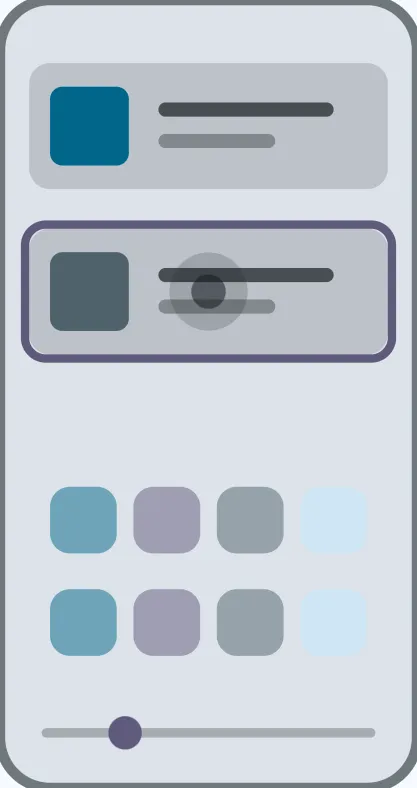
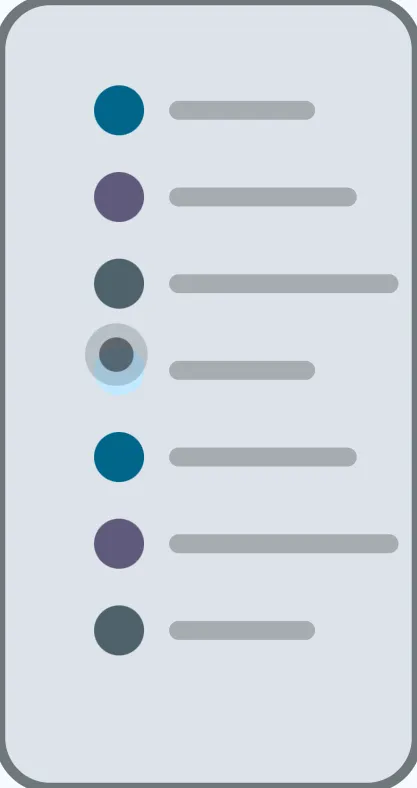
Swipe sideways between your home pages. After the last one is All apps: every app, A to Z, with personal and work apart.

  1. Swipe left or right anywhere on a page.
  2. Keep going past the last page for All apps.
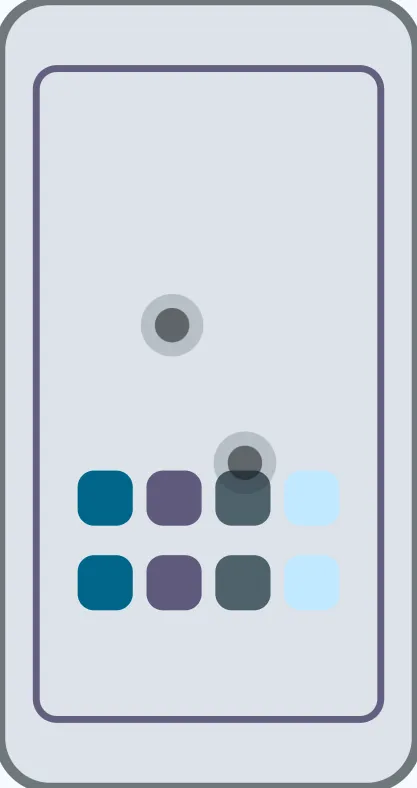
  3. Pinch in to add, remove or reorder pages.
Hold an app

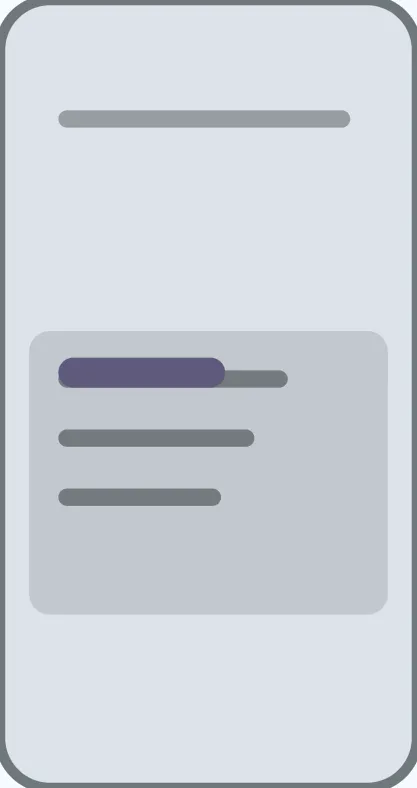
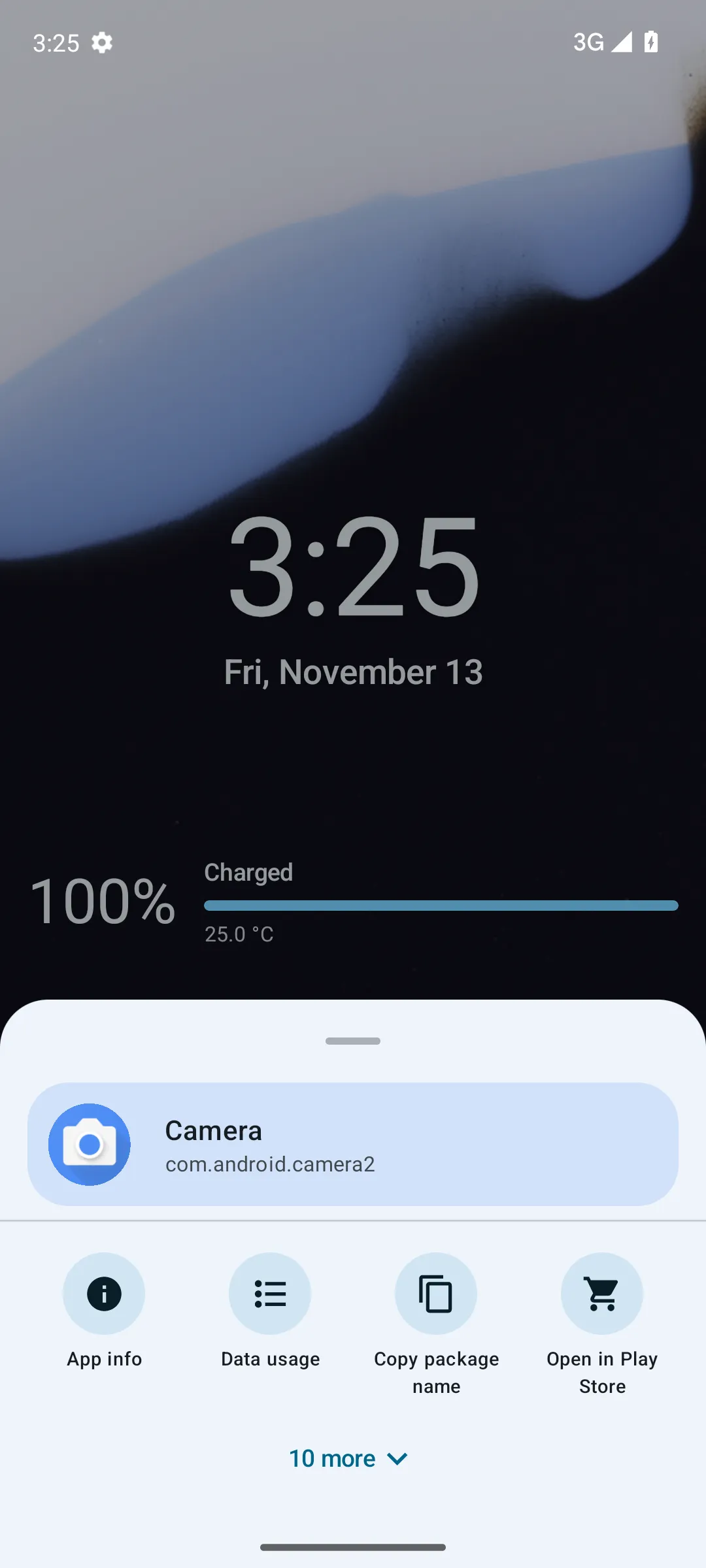
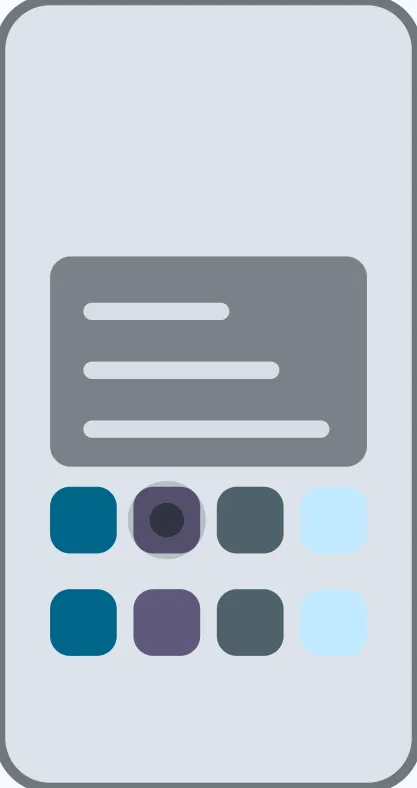
Hold an app and let go without moving for its menu: shortcuts, its info, where else to put it, and more. Move while holding to carry it somewhere else.

  1. Hold an app on home, in All apps or in search.
  2. Let go for its menu, or move to pick it up.
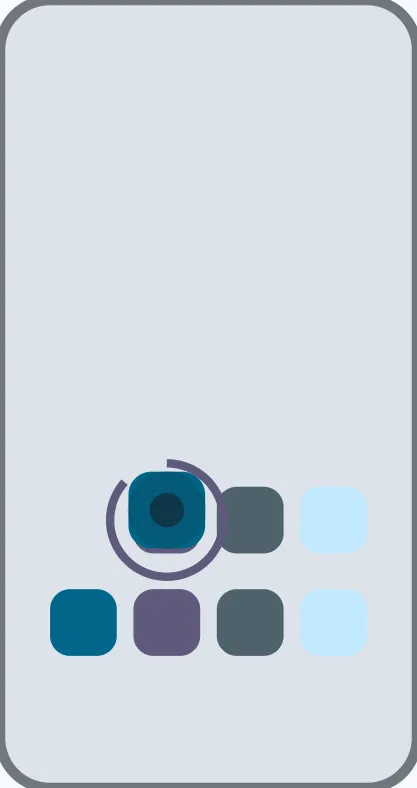
  3. Carry it to a page, a folder or a group, and let go.

Arrange your home

Pinch in on a page, or hold an empty spot, to edit it: add, move, resize and remove widgets, add pages, and give each page a background.

  1. Pinch in with two fingers, or hold the wallpaper.
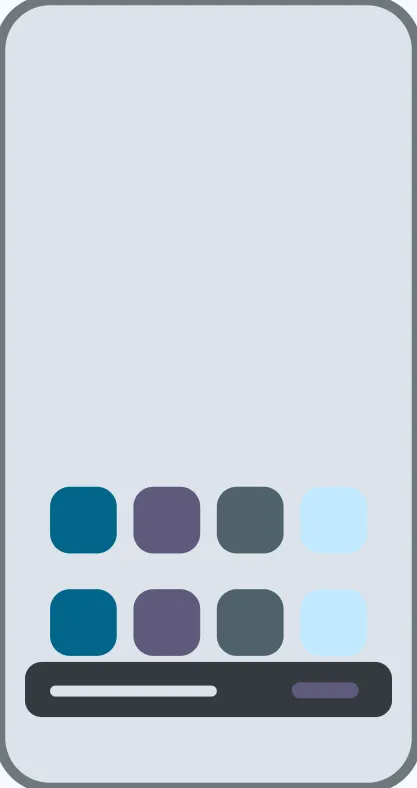
  2. Use the bar at the foot to add a widget or a page.
  3. Tap Done, or press back, when it is how you like it.

Undo almost anything

A removed widget or page, a tidy, a new background or theme: a bar offers Undo for a few seconds, and the time machine keeps your home as it was each day.

  1. Tap Undo on the bar that appears after a change.
  2. Missed it? Settings ▸ Share and backup ▸ Time machine.

Find any setting

Settings has a page for each place on the phone and each kind of look. Its search finds any setting by its name or by another word for it, and says where it is.

  1. Tap the gear at the end of the search bar, or open Talo Settings.
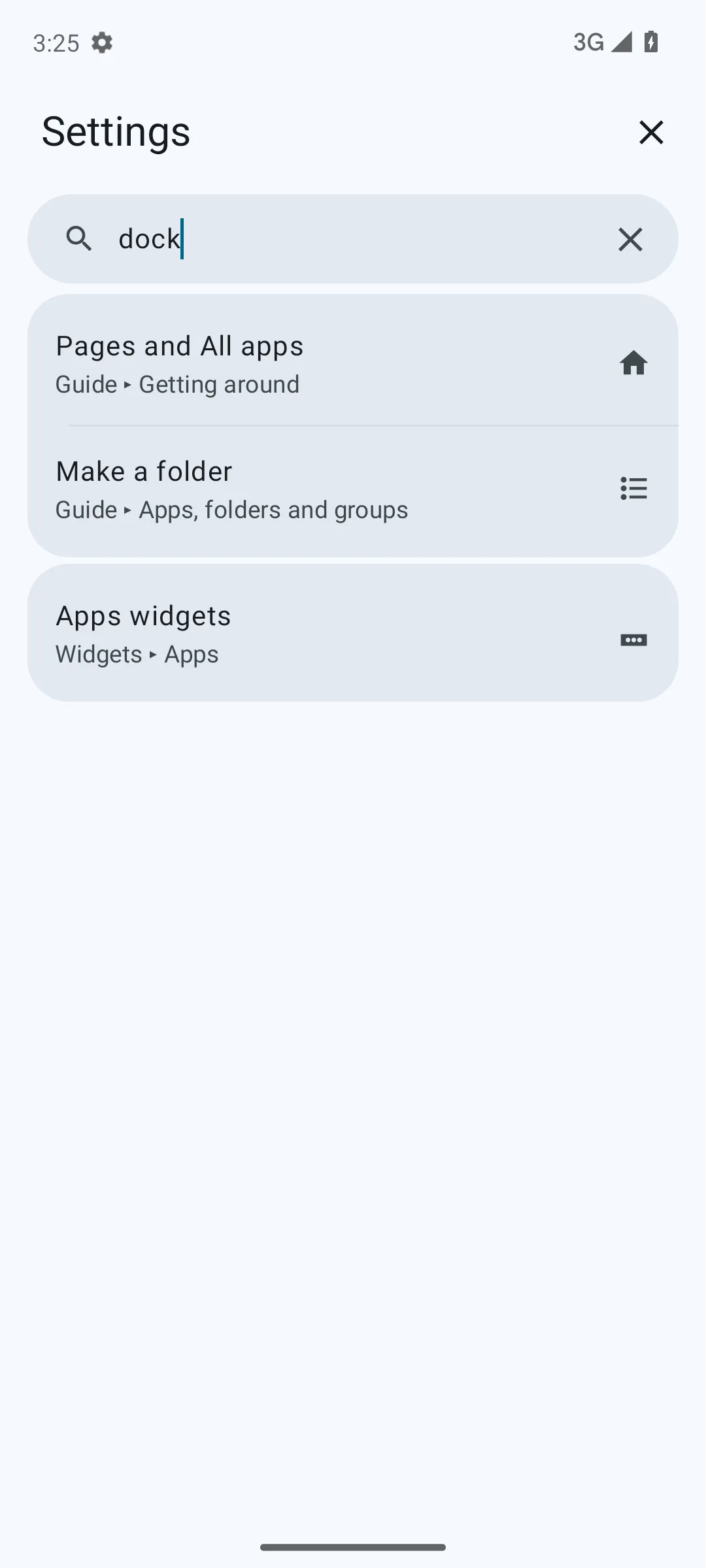
  2. Type in Search settings: "dock", "drawer", "dark mode".
  3. Simple settings shows what most people change; All settings shows the rest.

The Guide, tips and what's new

This Guide explains everything, and every settings page has a ? that opens its article. After an update, Settings shows what's new, and a few one-time tips appear where they help.

  1. Settings ▸ About ▸ Guide, or the ? on a settings page.
  2. Search the Guide from its top, or from the search bar on home.
  3. Settings ▸ About ▸ What's new lists the changes of the last versions.

In Talo: Settings ▸ About

Home pages and widgets

Widgets of its own and of other apps, arranged, stacked and sized.

Add a widget

Talo has widgets of its own, from now playing to notes and habits, and can show any other app's too. Each has a sheet of its own settings.

  1. Pinch in on a page, then tap Add a widget.
  2. Pick one of Talo's, or another app's from its list.
  3. Hold a widget in edit mode and tap its settings for what it shows.

Move and size widgets

Hold a widget and drag it: edit mode opens under your finger. Drop it on another to swap them, at the edge to take it to the next page, and pull an edge to resize it. Two or three fit side by side.

  1. Hold a widget until it lifts, and drag.
  2. Let go over another widget to swap the two.
  3. Pull its top, bottom or sides to make it bigger or smaller.

Stack widgets

A stack keeps several widgets in one place, Talo's and other apps' alike. Swipe up and down on it, or along its dots.

  1. Add a Stack widget in edit mode.
  2. In its settings, add the widgets it should hold and put them in order.

In Talo: Settings ▸ Widgets

The clock

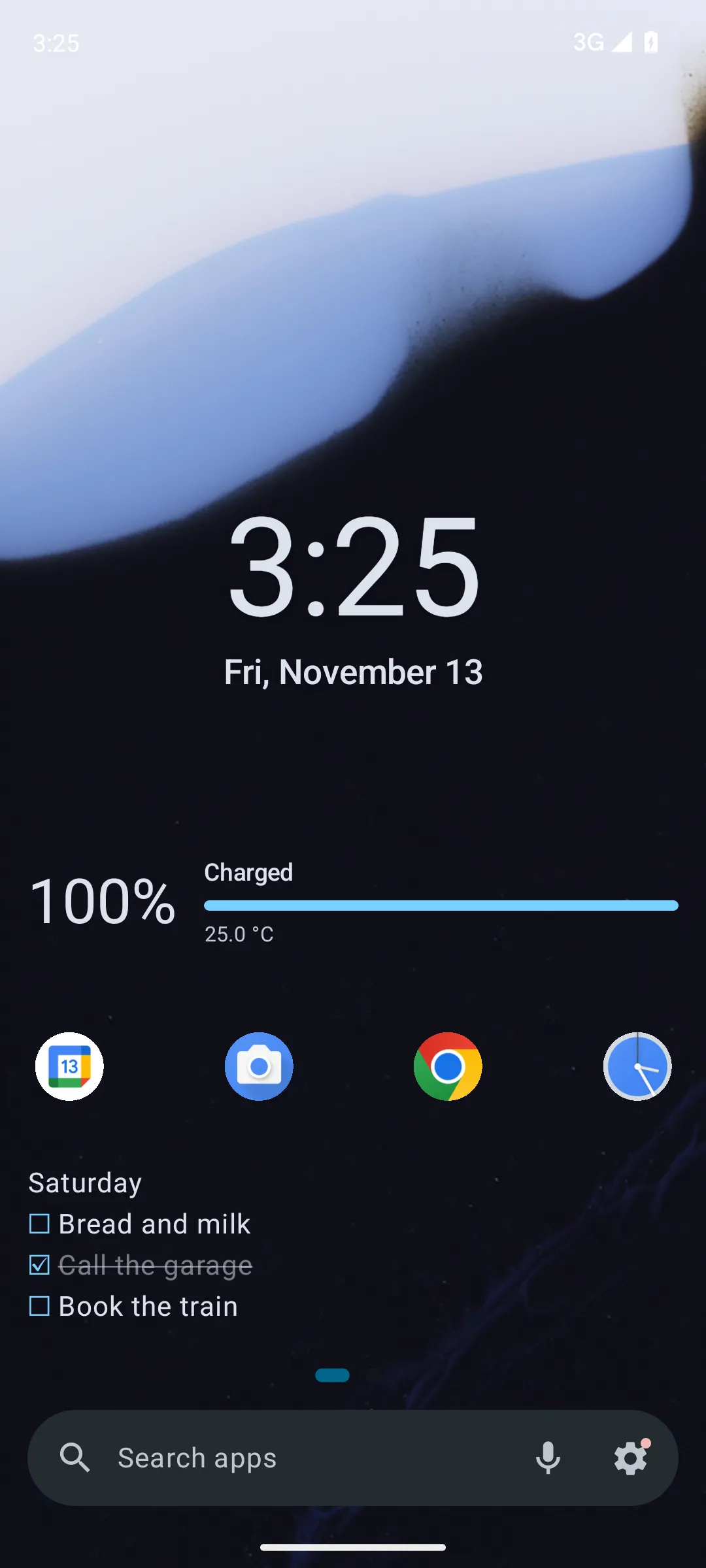
The clock can be hands, figures or words, with the date, your next alarm and the weather app of your choice. On the charger at night it can become a dim bedside clock.

  1. Hold the clock and open its settings, or Settings ▸ Widgets ▸ Clock.
  2. Choose its face, font and what it shows under the time.
  3. Tap the time to open your clock app.

In Talo: Settings ▸ Widgets

Notes and checklists

A note on home, as many as you like: plain words, a checklist, or Markdown with headings, links and tasks you can tick.

  1. Add a Note widget in edit mode, and tap it to write.
  2. In its settings, make it a checklist or switch Markdown on.
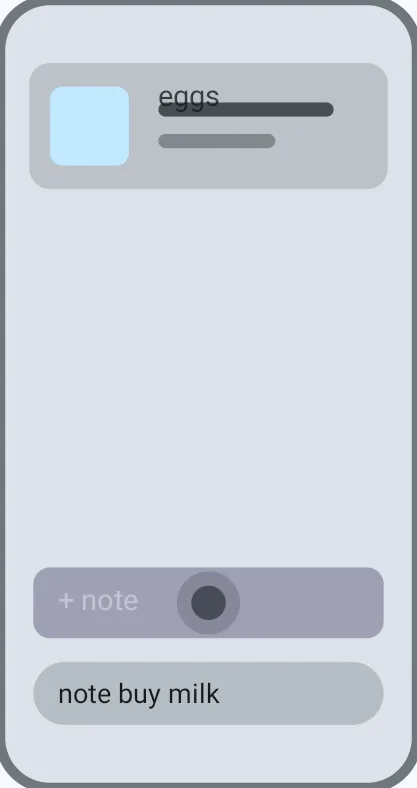
  3. From the search bar, "note buy milk" adds a line.

In Talo: Settings ▸ Widgets

Agenda, month and countdowns

Your next days, the month at a glance, or the days left until something: three widgets read from your calendar, which never leaves the phone.

  1. Add Agenda, Month or Countdown in edit mode.
  2. Allow the calendar when asked; nothing else is needed.
  3. Tap an event to open it in your calendar app.

In Talo: Settings ▸ Widgets

Widgets that know things

Battery, quick toggles, timers, now playing, screen time, your favourite people, world clocks, habits, birthdays, the moon, storage and how far the year has got: small widgets, each a tap from more.

  1. Pinch in, tap Add a widget, and look through Talo's.
  2. Each has its settings: hold it in edit mode.

In Talo: Settings ▸ Widgets

Notifications on home

Pin a notification, such as a delivery or a boarding pass, and it stays on home as a card that updates itself. Another widget lists everything waiting.

  1. Allow notification access in Settings ▸ Permissions.
  2. Add Live cards or Notifications in edit mode.
  3. Unread counts show on icons too.

In Talo: Settings ▸ Permissions

Clipboard history

What you copy is kept on the phone, for as long as you choose, in a widget and in search. Pin what you want to keep; passwords and codes are hidden.

  1. Add Clipboard in edit mode, or search for something you copied.
  2. Tap a copy to copy it again; hold it to pin or delete it.
  3. Settings ▸ Clipboard history says how long copies are kept.

In Talo: Settings ▸ Clipboard history

On its side, tablets and foldables

A phone on its side gets two columns for reading; a tablet or an opened foldable keeps the upright page in the middle and can be edited as usual. All apps adds columns to fill the width.

  1. Turn the phone, or open the foldable: Talo follows.

Apps, folders and groups

All apps, folders big and small, groups, and what holding an app offers.

All apps

Every app, as a list or a grid, sorted A to Z, by use, size, data or when installed. Each row can say more: screen time, the latest notification, the version.

  1. Swipe past your last page.
  2. Settings ▸ All apps: shown as, sort, columns and icon size.
  3. Settings ▸ App rows and menu: what each row says.

In Talo: Settings ▸ All apps

Make a folder

In an apps widget, drag an app over the middle of another: the two become a folder. Over the gap between two, it goes in between instead.

  1. Hold an app in an apps widget and drag it onto another.
  2. Tap the folder to open it; drag apps in or out.
  3. Settings ▸ Folders sets how every folder looks and opens.

In Talo: Settings ▸ Folders

Big folders

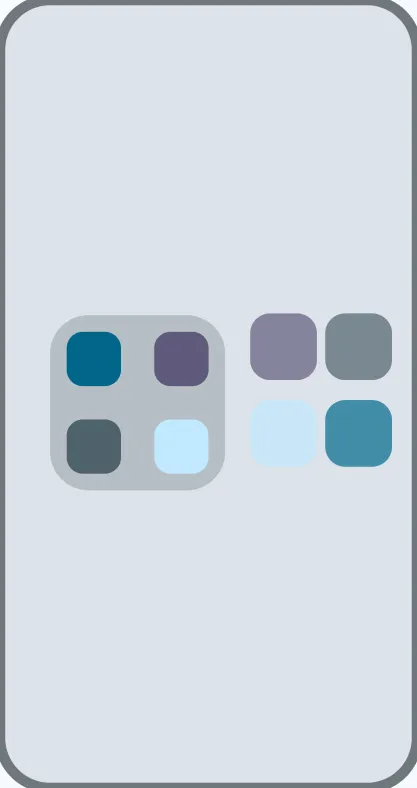
A folder can sit on home two by two, or two across, with its first apps a tap each straight from home. It can have a colour of its own.

  1. Open a folder and tap ⋮.
  2. Under Size on home, choose big or wide.
  3. Background gives it a colour of its own.

In Talo: Settings ▸ Folders

Widgets in a folder

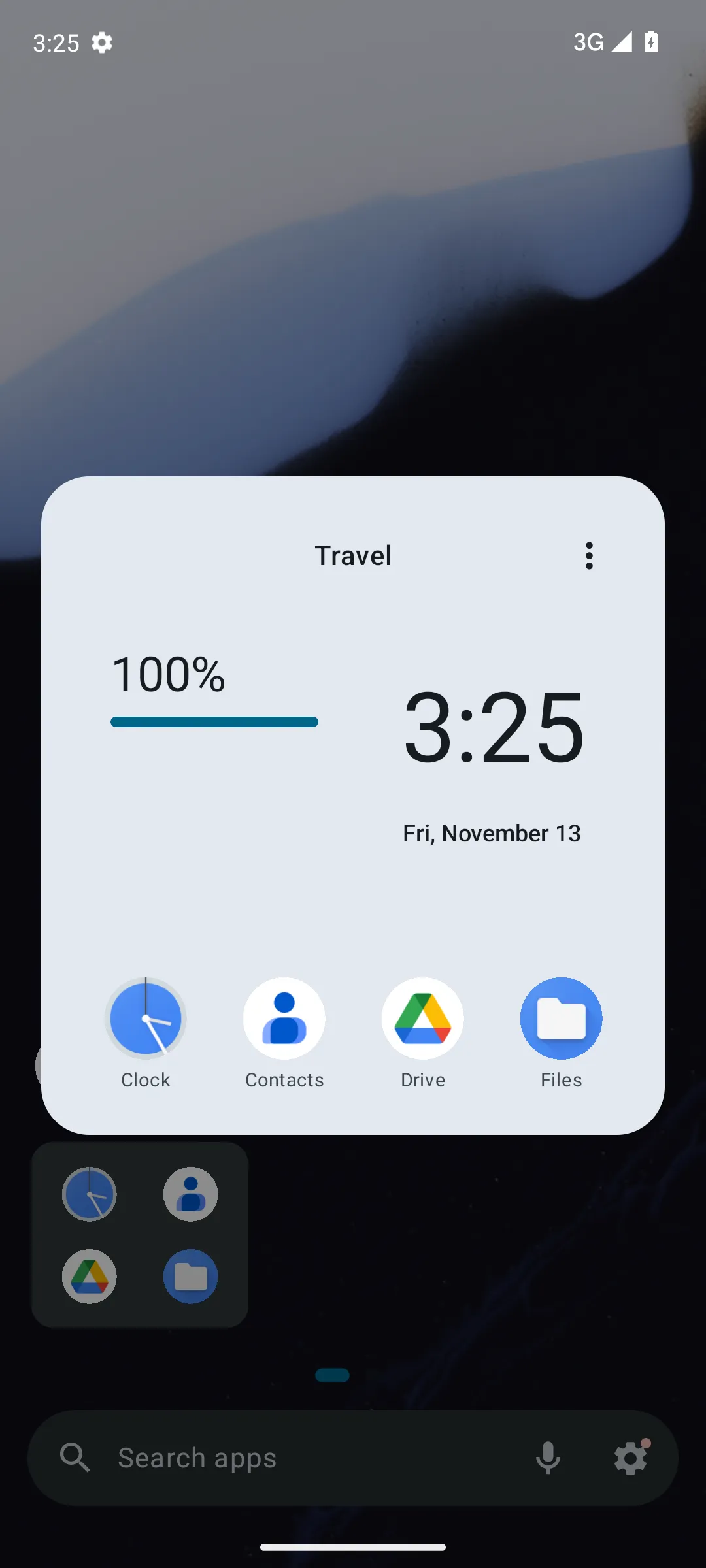
A folder can hold widgets above its apps, as many as you like, arranged as on a page: now playing in a music folder, a boarding pass in a travel one.

  1. Open a folder, tap ⋮ ▸ Add a widget.
  2. Tap ⋮ ▸ Arrange widgets: drag to reorder, pull a side for the width, the foot for the height.
  3. Tap ✓ when done.

Groups, as the App Library has them

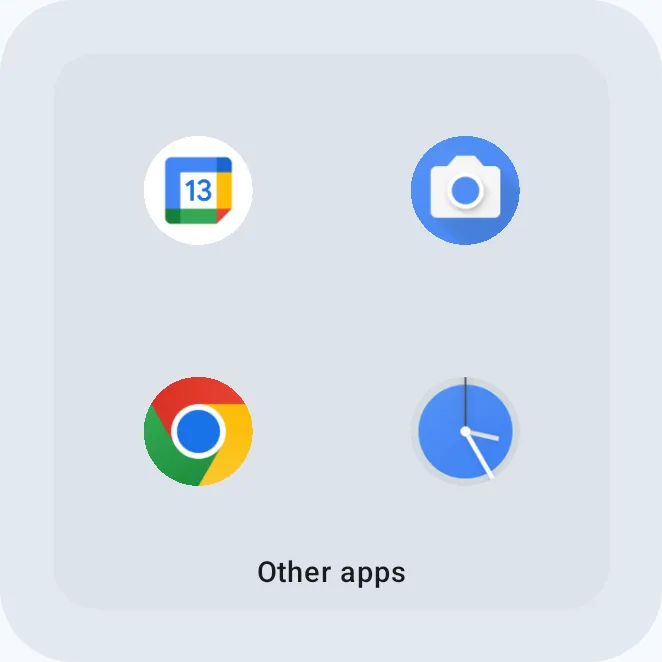
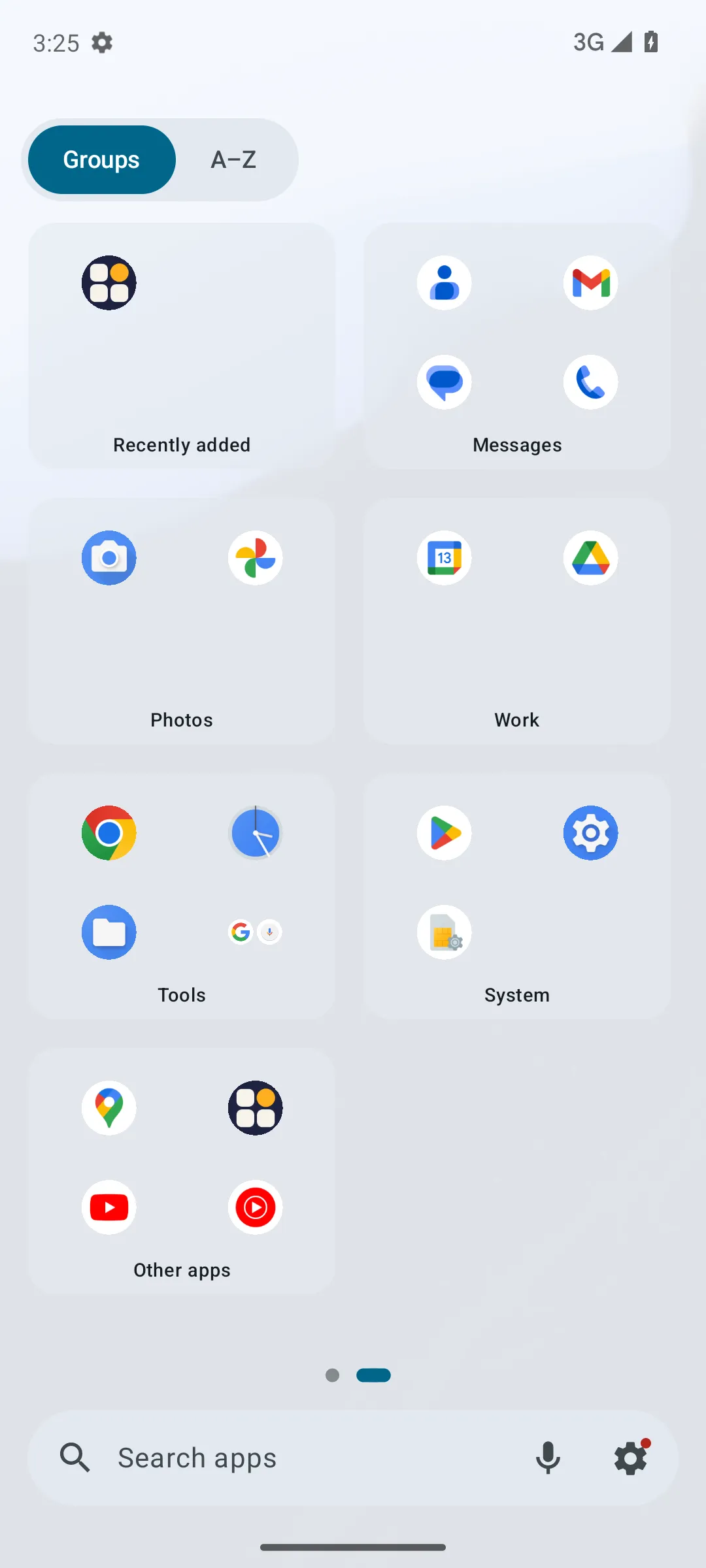
Switch groups on and your apps are sorted by their kind: messages, games, music, money. As tiles, each shows its three most used apps and the rest small in a corner; Suggested and Recently added come first.

  1. Settings ▸ All apps ▸ Groups ▸ Show groups.
  2. Groups as big folders shows them as tiles; tap the corner to open a group.
  3. Choose the tiles' icon size and corners there too, and whether groups make themselves.

In Talo: Settings ▸ All apps

Your own groups

Make groups of your own, name them and put them in order; yours always come before the ones made by kind. Carry an app onto a group's tile to move it there.

  1. Hold an app ▸ Group, and pick or name one.
  2. Or drag an app onto a group's tile in All apps.
  3. Settings ▸ All apps ▸ Groups: rename, reorder or delete a group.

In Talo: Settings ▸ All apps

Suggested apps

A row of what you usually open around now, learned on this phone from your launches. It can learn what you open with headphones in or on the charger, too.

  1. Settings ▸ Suggestions ▸ Suggested apps.
  2. Choose how many, and whether they have names.

In Talo: Settings ▸ Suggestions

The app menu

Holding an app opens its menu: shortcuts, notifications, and actions such as rename, change icon, hide, lock and uninstall. Arrange them as you like, 4, 5 or 6 to a row.

  1. Hold an app and let go.
  2. Settings ▸ App rows and menu: switch actions on or off and drag them into order.
  3. Choose how many go in a row and how big they are.

In Talo: Settings ▸ App rows and menu

Choose several apps

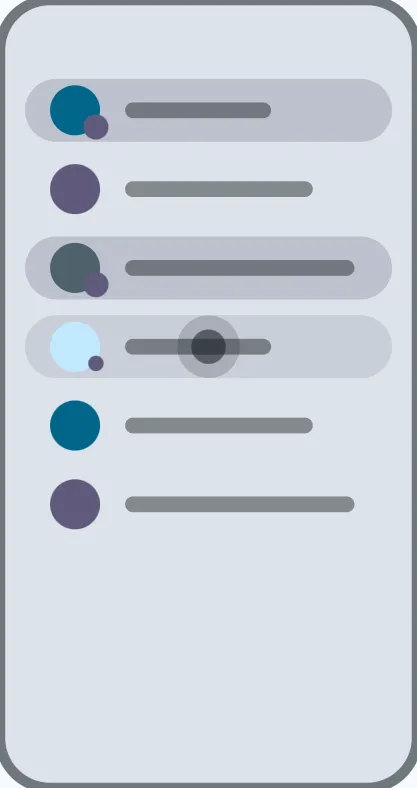
In All apps, choose several apps at once and do one thing to them all: put them in a folder, on home or in a group, or hide them.

  1. Hold an app in All apps ▸ Select.
  2. Tap the others.
  3. Pick what to do from the bar at the foot.

Hidden apps, work and private space

Hide an app and it is gone from lists and search. Work apps have a tab of their own and can be paused; Android's private space has a section at the end of All apps, gone when locked.

  1. Hold an app ▸ Hide; Settings ▸ Focus and privacy ▸ Privacy lists the hidden ones.
  2. With groups as tiles, the hidden apps are the last tile, opened with your lock.
  3. Pause work apps from the same page.

In Talo: Settings ▸ Privacy

New and updated apps

An app you have not opened since installing it wears a dot; the list can tag new and updated apps too. All apps opens on what you usually open around now.

  1. Settings ▸ Icons ▸ Mark new apps.
  2. Settings ▸ App rows and menu for the New and Updated tags.

In Talo: Settings ▸ Icons

Rings and bars

A ring round each icon tells screen time, data and size, a quarter each; the lists show the same as bars, in the same colours.

  1. Settings ▸ All apps ▸ Ring around icons.
  2. Usage access is asked for when the figures need it.

In Talo: Settings ▸ All apps

Look

Themes, colours, icons, backgrounds and how apps open.

Themes

Whole looks drawn on your own pages: colours, backgrounds, icons and the clock. Try one for a day and home goes back by itself, roll a random one, or keep it.

  1. Settings ▸ Themes, and tap one to try it.
  2. Keep it, or let it go back at midnight.
  3. Wear one look by day and another by night.

Colours and style

Light, dark or by the wallpaper, an accent, pure black, the font, text on the wallpaper, widget cards and their corners, and how the list and the search bar look.

  1. Settings ▸ Colors and style.
  2. Hold the house at the top of a settings page to peek at home.

In Talo: Settings ▸ Colors and style

Icons

Their shape, size and shadow, colour effects from a soft tint to neon, icon packs, ready-made looks, and a calendar icon that shows today's date.

  1. Settings ▸ Icons.
  2. Pick a ready-made look, or shape, effect and size one by one.
  3. Hold an app ▸ Change icon for one app alone.

In Talo: Settings ▸ Icons

Page backgrounds

Each page its own: gradients, patterns, textures, photos in frames, blur, the sky's colours or the album's, or one across them all. All apps, the search bar and every widget can have one too.

  1. In edit mode, ⋮ ▸ Page background, and start from a preset.
  2. Settings ▸ Backgrounds has every one, and takes them off.
  3. Set a page as the phone's wallpaper from there too.

In Talo: Settings ▸ Backgrounds

How apps open

Apps can grow out of their icon, fade, slide up or zoom, and swiping home lands back on the icon where the phone allows it. The status bar can be hidden too.

  1. Settings ▸ Motion and status bar.
  2. Choose how apps open, and how much things move.

In Talo: Settings ▸ Motion and status bar

Keep and share a look

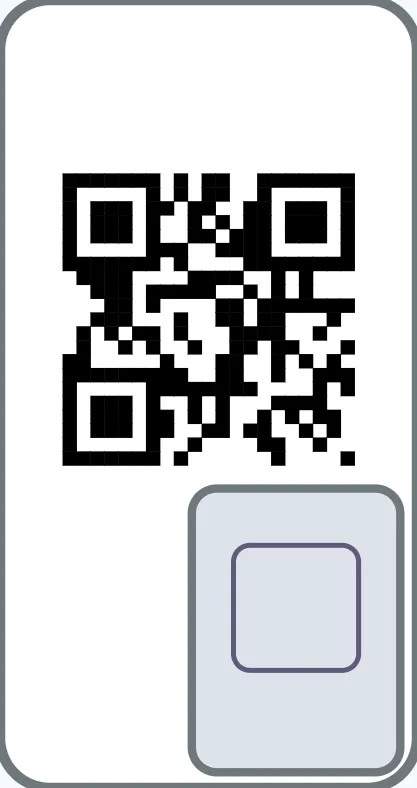
Keep looks you like and swap between them. Share your whole home, the look or any part as a QR code drawn in its own colours, or as a file; on the other phone, scan it and tick what to bring in.

  1. Settings ▸ Themes ▸ your looks, and Share.
  2. On the other phone, scan the code with the camera, or open the file.

In Talo: Settings ▸ Themes

Design with AI

Describe a home to an AI chat and bring its answer in.

Design your home with AI

Ask ChatGPT, Gemini, Claude or any AI chat for a home: a theme, pages, widgets, folders with their own widgets and colours, gestures, focus and app limits. Bring its answer back and Talo previews it before anything changes. Talo itself never goes online.
  1. Settings ▸ Themes ▸ With AI, and copy the prompt.
  2. Paste it into an AI chat with what you would like.
  3. Copy its answer and come home: Talo shows it, and brings in only what you tick.

In Talo: Settings ▸ Themes

Focus and privacy

Focus times, limits, locks and hidden apps, and what Talo asks for.

Focus

Some apps and groups out of the way at the times you choose, everywhere at once: on home, in lists and in search. A focus can grey icons, open a page of its own and keep notifications quiet.

  1. Settings ▸ Focus ▸ Add a focus.
  2. Choose its times and what it hides.
  3. From search, "focus work" starts one now.

In Talo: Settings ▸ Focus

A pause and daily limits

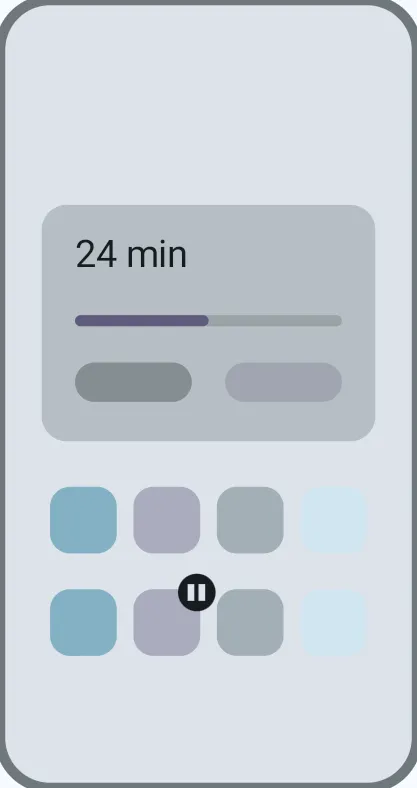
A pause of a few seconds before chosen apps, with today's screen time, and a daily limit after which an app asks before opening.

  1. Hold an app ▸ Pause before opening.
  2. Hold an app ▸ Daily limit, and choose the minutes.
Lock an app

A locked app asks for your fingerprint, face or screen lock before it opens, and its notifications stay out of Talo.
  1. Hold an app ▸ Lock this app.
  2. Settings ▸ Focus and privacy ▸ Privacy lists the locked ones.

In Talo: Settings ▸ Privacy

A clock for the night

On the charger at night, lying flat or still on a stand: a dim clock with your next alarm.

  1. Settings ▸ Widgets ▸ Clock ▸ Bedside clock.

In Talo: Settings ▸ Widgets

What Talo asks for, and why

Talo has no internet permission: nothing leaves the phone unless you share it. Usage access, notifications, calendar and contacts are asked for only when a feature needs them, and read on the phone only.

  1. Settings ▸ Permissions lists each one, what it is for, and whether it is on.
  2. Settings ▸ About ▸ Privacy policy has the whole of it.

In Talo: Settings ▸ Permissions

Gestures

What taps, swipes, fingers and drawn shapes do on the wallpaper.

Taps and swipes on the wallpaper

Double tap, hold, two fingers and three fingers up or down the wallpaper, and swipes up and down, each do what you choose: notifications, quick settings, lock the screen, recents, a screenshot, an app.

  1. Settings ▸ Gestures.
  2. Pick a gesture and what it does.
  3. Locking and screenshots need the gestures service, asked for when chosen.

In Talo: Settings ▸ Gestures

Draw to open an app

Give an app a shape of its own, set a gesture to the drawing pad, and drawing that shape opens it.

  1. Hold an app ▸ Draw a shape for it.
  2. Settings ▸ Gestures: set one to the drawing pad.
  3. Drawn shapes, on the same page, shows them all.

In Talo: Settings ▸ Gestures

Commands from other apps

Tasker, Automate and the like can tell Talo what to do: change the theme or the layout, start a focus, open a page. Nothing is accepted until you allow it.

  1. Settings ▸ Permissions ▸ Automation: allow commands.
  2. In the other app, send an intent to Talo with the command.

In Talo: Settings ▸ Permissions

Backup and sharing

Backups, the time machine, and sending your home to another phone.

Back up and restore

Your home, its look and its settings in one file, kept by hand or every day in a folder you choose. A new phone brings it all back from the welcome.

  1. Settings ▸ Share and backup ▸ Back up now.
  2. Choose a folder for automatic backups.
  3. Restore from the same page, or from the welcome on a new phone.

In Talo: Settings ▸ Share and backup

Share part of your home

Send a page, the look, the widgets or anything else as a file, a text or a code. On the other phone, Talo shows what is in it and brings in only what you tick.

  1. Settings ▸ Share and backup ▸ Share.
  2. Tick the parts, and send it.
  3. On the other phone, open the file or the text with Talo.

In Talo: Settings ▸ Share and backup

The time machine

Your home as it was over the last weeks, on a timeline or as a list. Bring back just what changed, one page or one widget; pin a layout to keep it, or switch to it on a schedule.

  1. Settings ▸ Share and backup ▸ Time machine.
  2. Pick a day, see what changed, and bring back what you want.

In Talo: Settings ▸ Share and backup

Space, data and a check-up

How big each app is and how much data it uses, apps nobody opens, and a check of what Talo needs to work at its best. If something keeps going wrong at start, Talo starts plainly and says so.

  1. Settings ▸ Space and data.
  2. Settings ▸ About ▸ Check my setup.

In Talo: Settings ▸ Space and data

Talo Pro

What Pro adds, and how to get it.

Talo Pro

Pro adds more widgets, looks, effects, themes, a longer time machine, pauses and limits, and drawn shapes. Buy it once or yearly; people who used Talo before 1.0.20 have it already.

  1. Settings ▸ Talo Pro shows everything it adds.
  2. Buy it there, or redeem a code.